
Build a Complete Website & SEO Dashboard in Looker Studio
Introduction
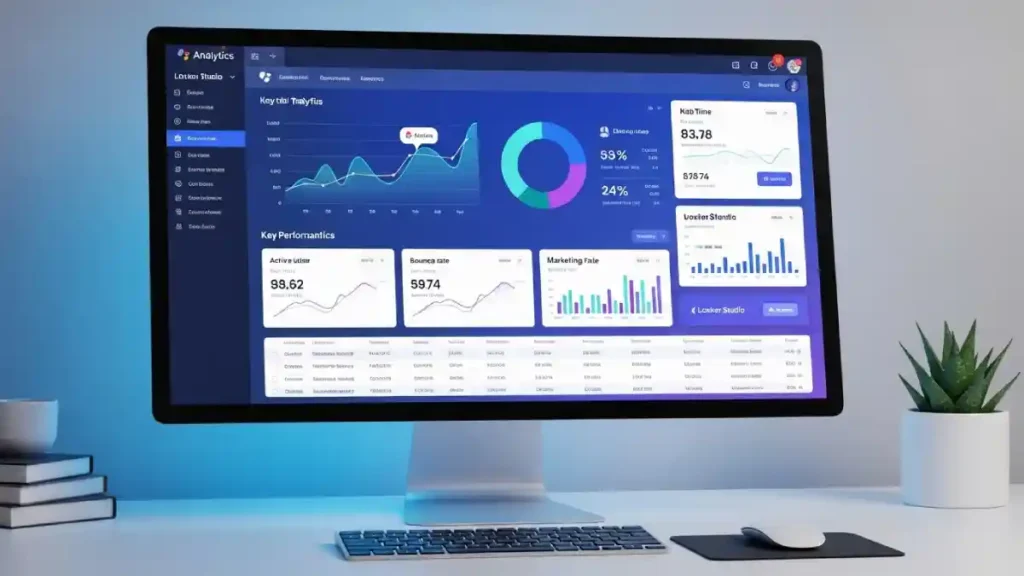
Most business owners and marketers spend hours bouncing between GA4 and Google Search Console to track website performance. Instead, you can build a single interactive Looker Studio dashboard that visualizes everything in one place.
This step-by-step guide walks you click-by-click through creating a professional reporting dashboard using only GA4, GSC, and Looker Studio. By the end, you’ll have a reporting suite that shows performance, highlights opportunities, and reveals meaningful marketing insights.
Tools You’ll Need
Before you begin, make sure you have access to:
-
Google Analytics 4 (GA4) – for website tracking
-
Google Search Console (GSC) – property added and verified
-
Looker Studio – Google’s free reporting and visualization tool
Once these are connected, you’re ready to build your first Looker Studio dashboard.
STEP 1 — Create Your First Looker Studio Report
-
Go to Looker Studio
-
Click Blank Report
-
When prompted to add a data source:
-
Select GA4 → choose your website property → Add
-
-
Repeat to add GSC:
-
Select URL connector → select your site → Add
-
-
Click Add to Report
You now have a blank Looker Studio canvas with GA4 and GSC connected.
STEP 2 — Build Page 1: Website Performance (Using GA4)
A. Add Scorecards (Top KPIs)
-
Click Add a chart
-
Select Scorecard
-
Place it on the canvas
-
Confirm the data source = GA4
-
Choose these metrics:
-
Users
-
Sessions
-
Views
-
Engagement Rate
-
Engaged Sessions
-
To organize:
-
Select all cards (Shift + click)
-
Arrange → Align → Top
-
Arrange → Distribute → Horizontally
For YoY or MoM comparisons:
-
Click a scorecard → Comparison date range → Previous period
This builds a clean KPI section at the top of your Looker Studio dashboard.
B. Daily Users Trend Chart
-
Add → Time series
-
Dimension → Date
-
Metric → Users
-
Optional: STYLE → Trendline → On
-
Title: “Daily Users (Last 30 Days)”
C. Traffic Channels Pie Chart
-
Add → Pie Chart
-
Dimension → Session default channel grouping
-
Metric → Users
-
Title: “Traffic by Channel”
D. Top Landing Pages Table
-
Add → Table chart
-
Dimension → Page path + query string
-
Metrics:
-
Views
-
Users
-
Engaged Sessions
-
Engagement Rate
-
-
Sort by Views descending
Optional formatting:
-
STYLE → Conditional formatting → Highlight top-performing pages
Your first page in Looker Studio now provides a complete performance summary from GA4.
STEP 3 — Build Page 2: SEO Performance (Using GSC)
Top menu → Page → New page
A. SEO Scorecards
-
Add → Scorecard
-
Data source → Search Console (URL connector)
-
Metrics:
-
Clicks
-
Impressions
-
CTR
-
Average Position
-
Arrange horizontally and enable comparison with the previous period.
B. Search Traffic Trend Line
-
Add → Time series
-
Dimension → Date
-
Metrics:
-
Clicks
-
Impressions
-
-
Optional: Trendline → On
-
Title: “Search Traffic Over Time”
C. Top Keywords Table
-
Add → Table
-
Dimension → Query
-
Metrics:
-
Clicks
-
Impressions
-
CTR
-
Average Position
-
-
Sort by Clicks descending
Optional styling:
-
Conditional formatting for high-CTR keywords
D. Top SEO Landing Pages Table
Using GSC (URL connector):
-
Dimension → Landing Page
-
Metrics:
-
Clicks
-
Impressions
-
CTR
-
Average Position
-
-
Sort by Clicks descending
This method fixes the common Looker Studio issue where page-level dimensions don’t appear when using the Site Impression connector.
STEP 4 — Enhance Your Looker Studio Dashboard
A. Add Growth Indicators
Improve insights by:
-
Showing percentage change in scorecards
-
Enabling trendlines in charts
These help your Looker Studio report reveal improvement or decline at a glance.
B. Blend GA4 + GSC Data
Top menu → Resource → Manage blended data → Add a blend
Left (GA4):
-
Dimension: Page path
-
Metrics:
-
Users
-
Engaged Sessions
-
Engagement Rate
-
Right (GSC):
-
Dimension: Landing Page
-
Metrics:
-
Clicks
-
Impressions
-
CTR
-
Average Position
-
Join key: Page path → Save → Add as a table
Sorting by CTR, engagement, or clicks makes it easy to spot pages that need optimization.
C. Add Conversions (Optional)
If GA4 is tracking form submissions or leads:
-
Add a Conversion Rate scorecard
-
Formula: Conversions / Users
-
-
Add a table of top pages driving conversions
This turns your Looker Studio dashboard into a true ROI decision tool.
D. Add a Funnel Visualization (Optional)
Add → Combo or Bar chart
-
Dimension: Funnel stages
-
Metrics: Users → Sessions → Conversions
This highlights drop-off points.
STEP 5 — Make It Interactive
In Looker Studio, add:
-
Date Range Picker → Place in top-right
-
Optional filters:
-
Device category
-
Traffic channel
-
Country
-
Page path
-
This allows viewers to explore data without editing the dashboard.
STEP 6 — Branding & UI Styling
For a professional layout in Looker Studio:
-
Add a logo top-left
-
Use a clean theme:
-
White background
-
Blue (#0B3D91)
-
Gold (#FFC107)
-
-
Bold chart titles
-
Add light borders or drop shadows for readability
Clean visual design increases dashboard clarity and scan-ability.
STEP 7 — Sharing Your Looker Studio Dashboard
You can distribute your report easily:
-
Share → Invite people
-
File → Schedule email delivery
-
Send as PDF weekly or monthly
-
-
Embed in a website or LinkedIn post
Looker Studio’s collaboration features make reporting simple for teams and clients.
STEP 8 — Add an Insights Box (Recommended)
Add → Text box
Use it to summarize:
-
Wins this month
-
Pages or keywords needing improvement
-
Recommendations
Example:
“Organic traffic increased 12% this month, driven by blog posts X, Y, and Z. Contact page CTR is low — consider moving the CTA above the fold.”
This transforms your Looker Studio report from a static dashboard into a proactive business recommendation engine.
🎉 Congratulations!
You’ve now built a complete Looker Studio dashboard that includes:
Page 1 (GA4)
-
Users, sessions, views, engagement
-
Daily performance trends
-
Acquisition channels
-
Top landing pages
Page 2 (GSC)
-
Clicks, impressions, CTR, ranking
-
Keyword performance
-
Best-performing SEO pages
Enhanced With
-
Blended GA4 + GSC datasets
-
Trendlines and comparisons
-
Conversion reporting
-
Optional funnels and insights
With this setup, you can:
-
Monitor website performance daily
-
Shift from reporting to analysis
-
Provide ROI insights in minutes
-
Impress clients and stakeholders
This is one of the easiest and most scalable ways to bring GA4 and Search Console into a single Looker Studio marketing dashboard without writing a line of code.

This article was written and published by KaziBora Digital.